
How to Register and Login to Ludo Bonus
Create and access your Ludo Bonus account by binding an email address and setting a password. Follow the process below to connect your email and prepare your account for login.

Start with a Ludo Bonus Guest Account
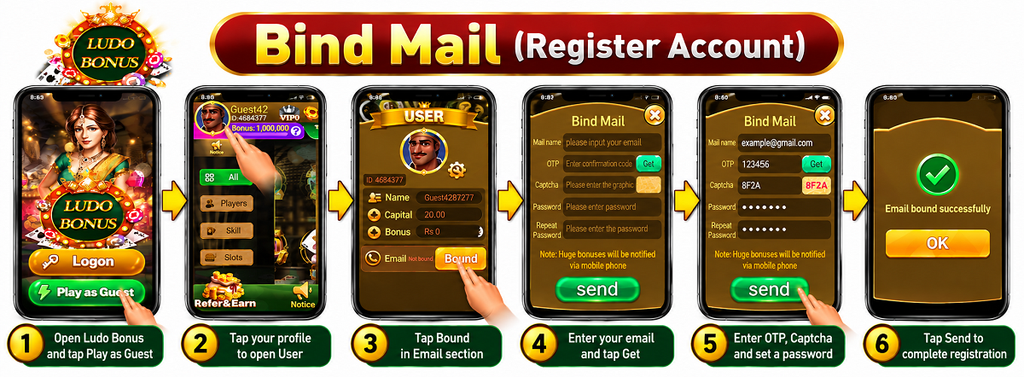
When you open the Ludo Bonus app, you can enter with the Play as Guest option. From the guest account, open your User profile to check the email binding status.
Open Ludo Bonus
Launch the app on your Android phone. On the opening screen, tap Play as Guest to enter the app with a guest account.
Open Your User Profile
Open the User profile to view your guest name, user ID, capital, bonus, and email status. If the Email section shows Not bound, an email has not yet been connected to the account.
Tap Bound
Find the Email section in your User profile and tap Bound. The Bind Mail screen will open so you can connect an email address to the guest account.
How to Register Ludo Bonus with Bind Mail
The Bind Mail screen lets you connect an email address and password to the guest account. Complete the email verification and password fields before submitting the form.
Enter Your Email Address
Enter the email address you want to bind to the account in the Mail name field. Use an email address that you can access because a confirmation code is required.
Get the OTP
Tap Get beside the OTP field. Check the email address you entered for the confirmation code sent for verification.
Enter the OTP
Enter the confirmation code from your email into the OTP field on the Bind Mail screen.
Enter the Captcha
Look at the graphic verification code shown beside the Captcha field and enter the displayed characters.
Create a Password
Enter the password you want to use in the Password field. Keep this password safe because you will use it when logging in to the account later.
Repeat the Password
Enter the same password again in the Repeat Password field and make sure both password entries match.
Tap Send
Review the email, OTP, captcha, and password fields, then tap Send to submit the Bind Mail form and connect the email to your account.
How to Login to Ludo Bonus
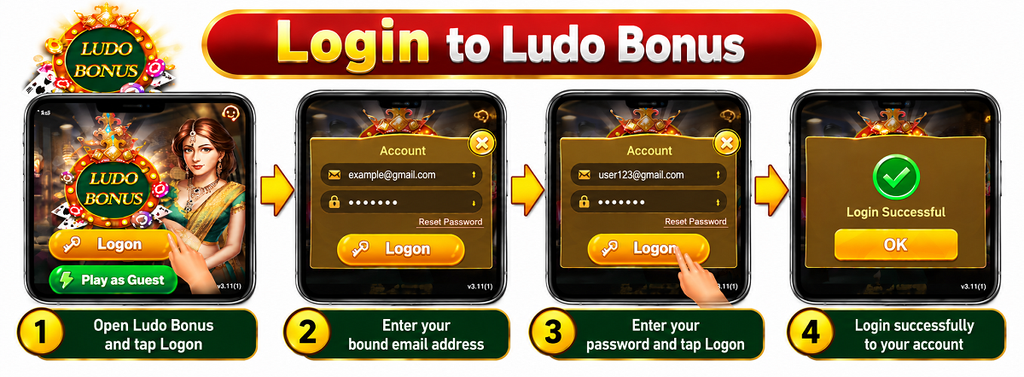
After binding your email and creating a password, you can use those account details to log in to Ludo Bonus. Open the app and use the Logon option instead of entering as a guest.
Tap Logon
Open Ludo Bonus on your Android phone. On the opening screen, tap the Logon button to open the account login form.
Enter Your Bound Email
In the Account field, enter the same email address that you previously connected through Bind Mail.
Enter Your Password
Enter the password you created when binding your email. Check the email and password carefully before continuing.
Tap the Logon Button
After entering your account email and password, tap Logon to submit the details and access the bound account.
If you cannot remember the account password, use the Reset Password option shown on the login screen instead of repeatedly entering an incorrect password.
Common Login and Registration Problems
If you cannot bind your email or log in to your Ludo Bonus account, check the account details carefully before trying again.
→OTP Not Received
Check that the email address entered in Bind Mail is correct and that you can access its inbox. Also check the spam or junk folder before requesting another confirmation code.
○Captcha Not Accepted
Read the graphic verification code carefully and enter the characters shown on the screen. If the code is difficult to read, reload the form if that option is available and try the new code.
✓Email or Password Does Not Work
Make sure you are using the same email address that was bound to the account. Check the password carefully for typing mistakes before submitting the login form again.
↻Forgot Your Password
Use the Reset Password option available on the Logon screen if you no longer remember your password. Follow the instructions displayed in the app to recover access.
Guest Account vs Bound Account
Ludo Bonus lets you start with a guest account, while Bind Mail connects an email address and password to that account for later login.
›Guest Account
Play as Guest provides quick access to the app without entering an email and password on the opening screen. The User profile can show the email as Not bound until an email is connected.
✉Bound Account
After completing Bind Mail, the connected email and password can be used from the Logon screen. Keep these account details available for future access.
Keep Your Ludo Bonus Account Details Safe
Your bound email and password are important for accessing the account again. A few simple checks can help prevent avoidable login problems.
Ludo Bonus Login and Registration FAQs
These answers cover common questions about guest access, Bind Mail, OTP verification, passwords, and logging in to Ludo Bonus.
?Can I open Ludo Bonus as a guest?
Yes. The opening screen provides a Play as Guest option that lets you enter the app with a guest account.
?How do I register my Ludo Bonus account?
Open your User profile, select Bound beside the Email section, and complete the Bind Mail form using your email, OTP, captcha, and password.
?Why does my profile show Not bound?
Not bound indicates that an email has not yet been connected through the Bind Mail process.
?What is the OTP used for?
The OTP is the confirmation code used during Bind Mail to verify the email address entered in the form.
?What details do I need to log in?
Use the email address bound to your account and the password created during the Bind Mail process.
?What should I do if I forget my password?
Select Reset Password on the Logon screen and follow the recovery instructions provided inside the app.
?Where can I download Ludo Bonus?
You can download the APK from our dedicated download page and then install it on a compatible Android device.
Final Words
Ludo Bonus allows users to start with a guest account and then connect an email through Bind Mail. Once the email is verified and a password is created, those details can be used from the Logon screen to access the bound account.
Keep your email and password secure, enter the OTP and captcha carefully during registration, and use Reset Password if you have trouble remembering your login password. You can return to the Ludo Bonus homepage for more app information.