
How to Deposit Money in Ludo Bonus
Learn how to add money to your Ludo Bonus account using the deposit options available inside the app. Follow the steps below to choose an amount, complete the payment, and check your deposit record.

How to Deposit Money in Ludo Bonus Step by Step
Open the Ludo Bonus app on your Android phone and follow the deposit process shown inside the app. Check the selected amount and payment details carefully before completing a transaction.
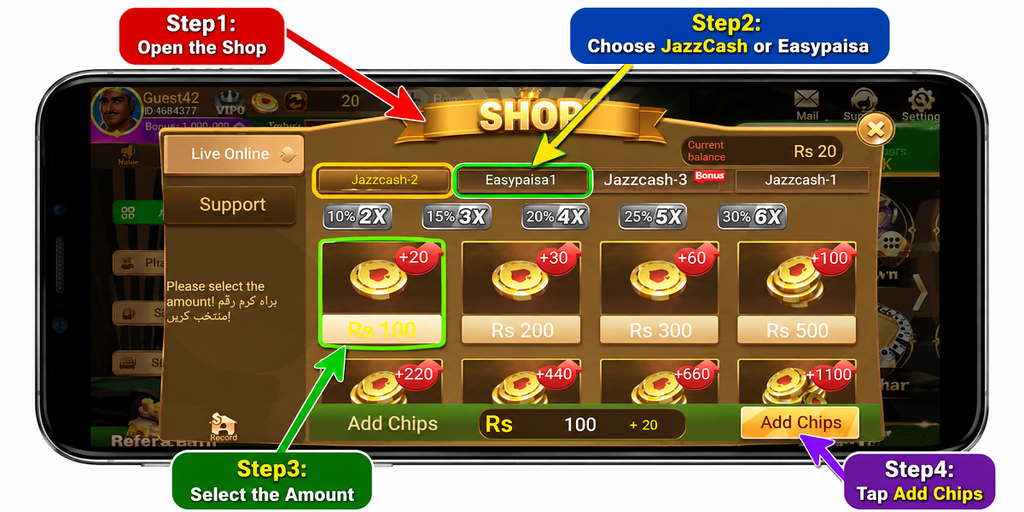
Step1: Open the Shop
From the Ludo Bonus home screen, open the Shop section to view the available Add Chips options and your current balance.
Step2: Choose JazzCash or Easypaisa
Select JazzCash or Easypaisa from the available payment options. Check that the payment method you want to use is selected before choosing an amount.
Step3: Select the Deposit Amount
Choose the amount you want to add from the options shown in the Shop. Review the selected amount and any bonus displayed with it before continuing.
Step4: Tap Add Chips
After selecting the amount, tap Add Chips to continue. The app will take you to the next stage of the payment process.
Step5: Complete the Payment
Follow the payment instructions shown on the screen and check the transaction details before confirming the payment. Wait for the process to finish before closing the payment screen.
Step6: Check the Deposit Record
Open Record and select the Payment section to check your deposit information. The payment record can show details such as the order number, amount, time, and transaction status.
Ludo Bonus Deposit Payment Methods
Ludo Bonus provides local payment options for adding money to an account. JazzCash and Easypaisa can be selected during the deposit process, depending on the options displayed inside the app.
JazzCash Deposit
Open the Shop and choose an available JazzCash option. Select the amount you want to add, continue with Add Chips, and follow the payment instructions displayed on the screen.
Easypaisa Deposit
If you want to use Easypaisa, select the Easypaisa payment option inside the deposit section. Choose the required amount and follow the payment instructions shown by the app.
Deposit Amount and Bonus
The Shop can display different deposit amounts and bonus offers. Choose the amount that you want to deposit and check the amount and bonus shown on the screen before tapping Add Chips.
Deposit options or bonus amounts may change, so use the current information displayed inside Ludo Bonus when making a payment.
How to Check Your Deposit Record
The Record section can be used to review payment information after making a deposit. Open Record and select Payment to view the available transaction details.
Order Number
The payment record can display an order number that identifies the deposit transaction.
Deposit Amount
Check the amount shown in the payment record and compare it with the amount you selected during the deposit process.
Time and Status
The record can also show the transaction time and its current status. Check this information if you need to review a recent payment.
Common Ludo Bonus Deposit Problems
If a deposit does not complete as expected, check the payment details and transaction status before attempting another payment.
Deposit Is Not Showing
Give the transaction some time to update, then check the Payment section under Record. Avoid immediately repeating the same payment if the first transaction is still being processed.
Payment Did Not Complete
Check whether the payment was completed in JazzCash or Easypaisa and review any message shown during the transaction. If the payment was not completed, start a new deposit only after checking the previous transaction.
Deposit Status Is Pending
A pending status means the transaction may still be processing. Check the payment record again later and keep the transaction details available until the status changes.
Before Confirming a Deposit
Check the selected payment method, deposit amount, and payment details before confirming a transaction. Follow the instructions displayed during the payment process and avoid submitting the same transaction repeatedly while a previous payment is still being processed.
Keep your payment confirmation or transaction information until the deposit appears correctly in the app and its status can be checked in the payment record.
Using the Latest Ludo Bonus APK
If you still need the app on your Android phone, you can download the Ludo Bonus APK before following the deposit steps. After installation, open the app and use the Shop section to access the available deposit options.
Ludo Bonus Deposit FAQs
Can I deposit in Ludo Bonus with JazzCash?
JazzCash is available among the payment options shown in the Ludo Bonus Shop. Select a JazzCash option, choose an amount, and follow the payment instructions shown on the screen.
Can I use Easypaisa for a Ludo Bonus deposit?
Easypaisa can be used when the Easypaisa option is available in the deposit section. Select it, choose the required amount, and continue with the instructions displayed by the app.
Where can I check my deposit status?
Open the Record section and select Payment. This area can show information such as the order number, amount, time, and transaction status.
What should I do if my deposit is pending?
Wait for the transaction status to update and check the Payment record again. Keep your transaction information and avoid repeating the same payment while the previous one is still processing.
Do deposit amounts and bonuses stay the same?
Deposit packages and bonus offers can change. Check the current amount and bonus displayed inside the Shop before completing a payment.
Ludo Bonus Deposit Guide
The deposit process starts from the Shop, where you can select a payment option and deposit amount. Review the details before completing the payment, then use Record and Payment to check the transaction information and current status.